Setting up your account
Everything you do the first time — create your account, add your player, and get your child their own login. The screens below are from a phone; it works the same on a computer.
Told “an account with that email already exists”?
That’s expected, and it isn’t a mistake or a sign that anything went wrong. Your coach may have created your account already when they recorded your player’s first assessment, so their stats and notes had somewhere to live from day one. Don’t create a second account — take over the one that’s already there:
- Tap reset your password in that message, or go to developtheplayer.com/forgot.
- Enter the email your coach has for you, then check your inbox — and your spam folder.
- Open the emailed link and choose your own password. It lasts one hour and works once.
Then do these three things first, before anything else:
- Confirm your email. Tap the link in the confirmation email, or the Resend link button on the banner at the top of your dashboard. Until you do, password resets and lesson emails may not reach you.
- Check your player’s details in Settings — spelling, and especially birth year, which is how we compare their numbers against other kids their age. Tell your coach if a player is missing or shouldn’t be there.
- Turn on text updates in Settings if you want lesson reminders and confirmations by text. It stays off unless you switch it on, and you can reply STOP anytime.
Part 1 of 6
Create your account
One account for the whole family. Takes about a minute.
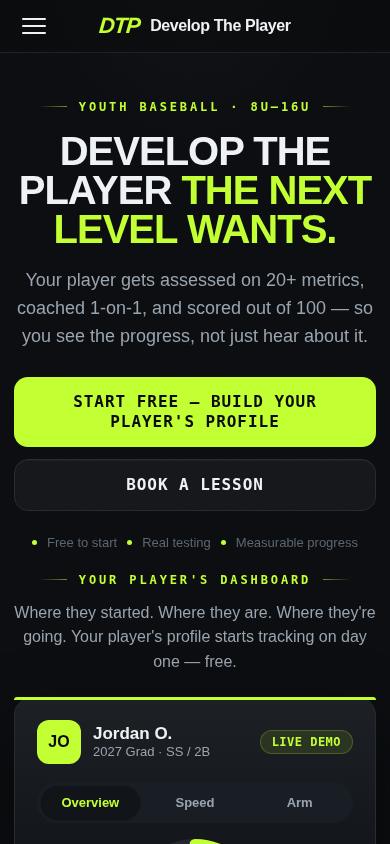
Step 1
Go to developtheplayer.com
Open developtheplayer.com in your phone's browser. Everything below works the same on a computer.
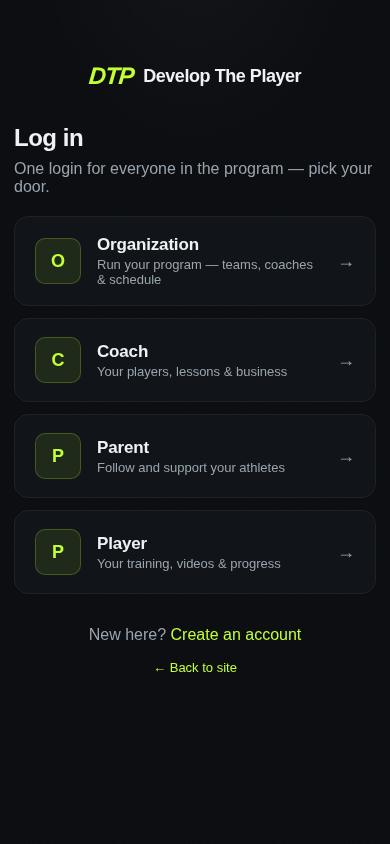
Step 2
Tap “Log in” and choose Parent
You'll see four doors. Parents pick “Parent”. (Your child uses the “Player” door later — that's a different login.)
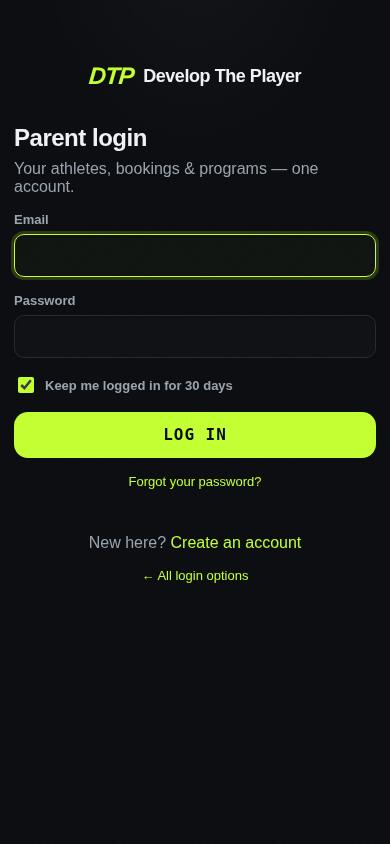
Step 3
Tap “Create an account”
This is the parent login. Since you don't have an account yet, tap “Create an account” at the bottom.
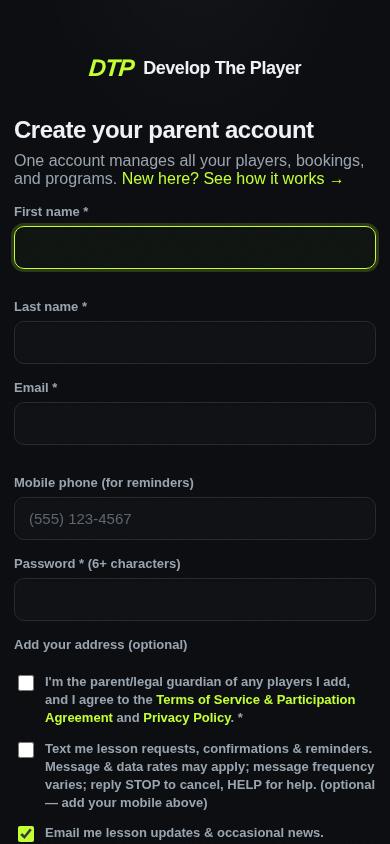
Step 4
Fill in your details
Your name, your email, and a password of at least 6 characters. The mobile number is optional but it's how you get lesson reminders.
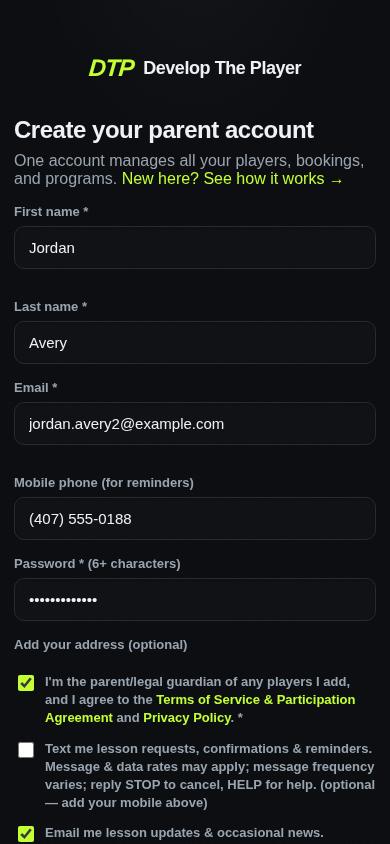
Step 5
Tick the Terms box
You must confirm you're the parent or guardian and accept the Terms. The two boxes under it (texts and email updates) are optional.
Step 6
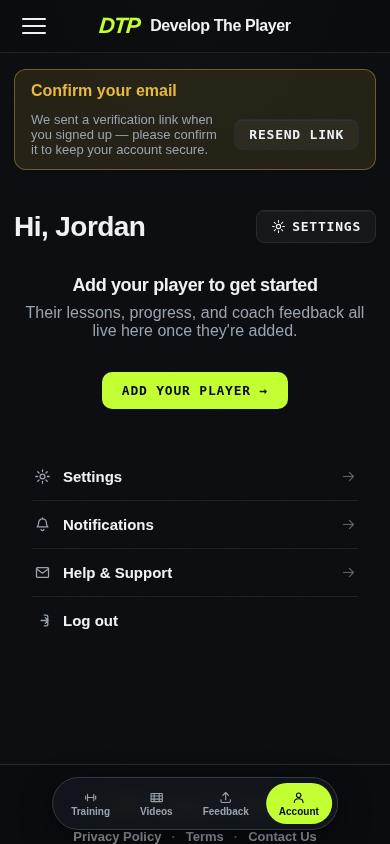
You're in
That's it — you're straight into your parent dashboard. No waiting on a confirmation email to get started.
Part 2 of 6
Add your player
Your dashboard stays empty until you add your child.
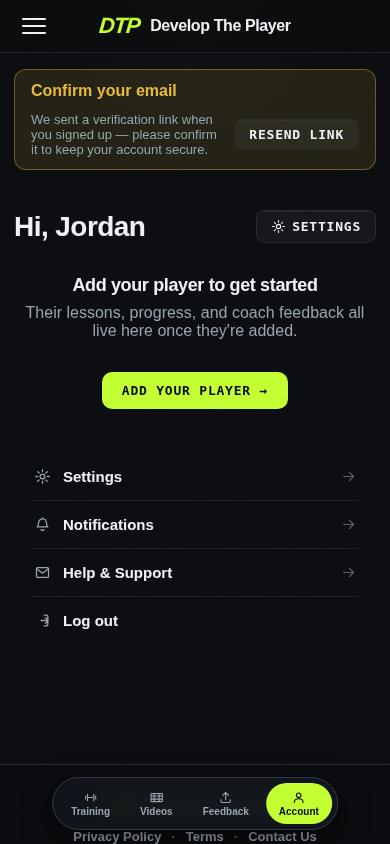
Step 7
Tap “Add your player”
Your dashboard is empty until you add your child. Tap the big green “Add your player” button.
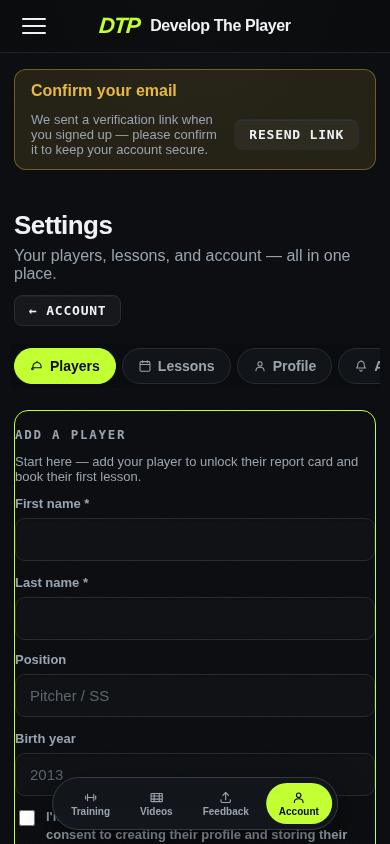
Step 8
Find the “Add a player” form
This opens your Settings page, where the “Add a player” form lives.
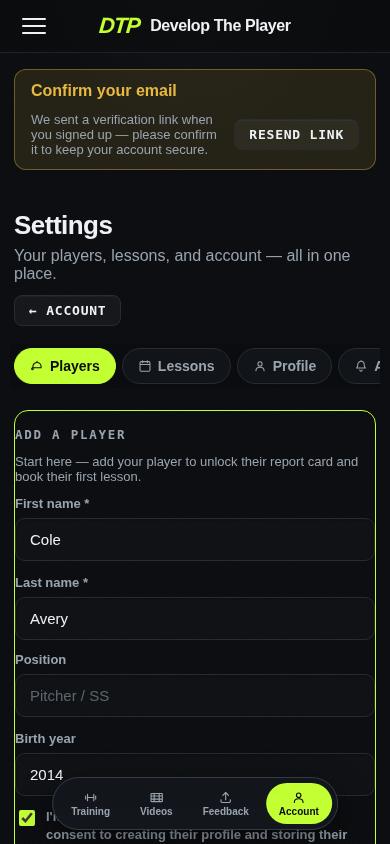
Step 9
Enter your child's details
Name and birth year. Birth year matters — it's how the app compares your child against age-appropriate benchmarks. Tick the consent box.
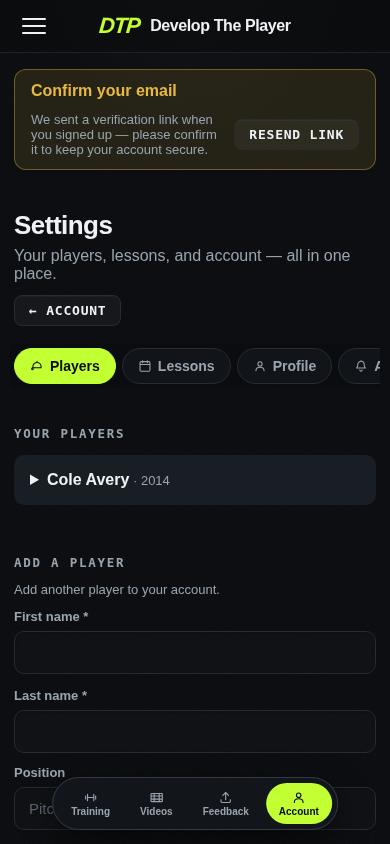
Step 10
Player added
Your child is now on your account. You can add more players the same way — one account covers the whole family.
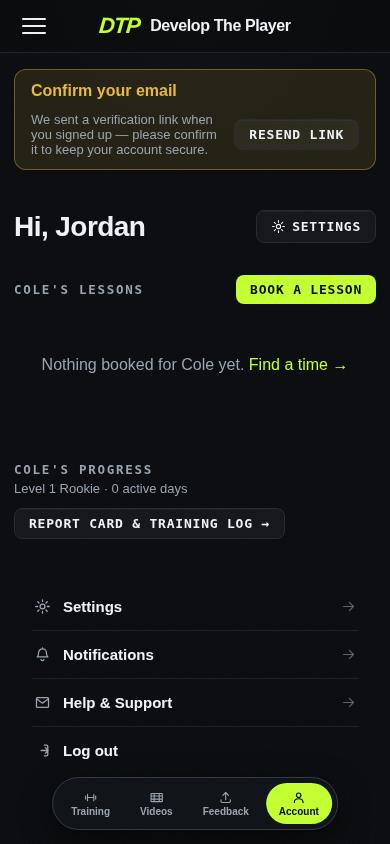
Step 11
Your finished dashboard
Lessons, progress and coach feedback all show up here as your child trains.
Part 3 of 6
Confirm your email
One tap, from the welcome email we send you.
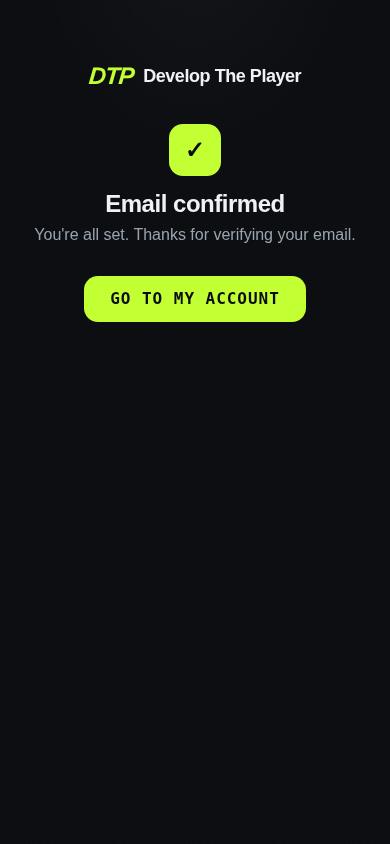
Step 12
Tap the link in your welcome email
We email you a confirmation link when you sign up. Tapping it confirms your address — do this so password resets and lesson emails reach you.
Part 4 of 6
Logging back in
Coming back later.
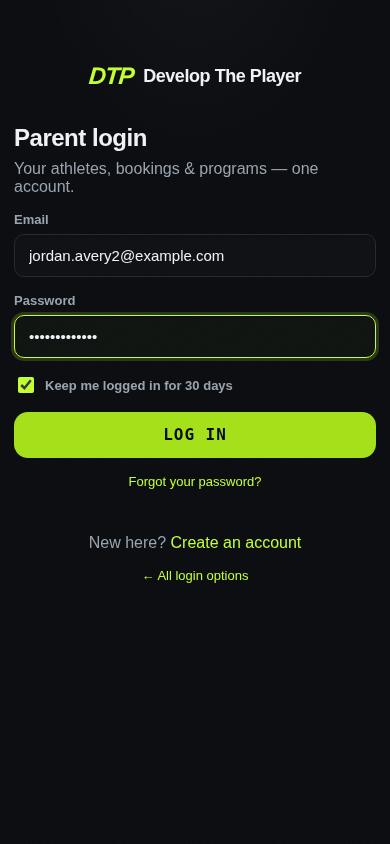
Step 13
Enter your email and password
Next time, use the Parent door. Leave “Keep me logged in” ticked and you'll stay signed in for 30 days.
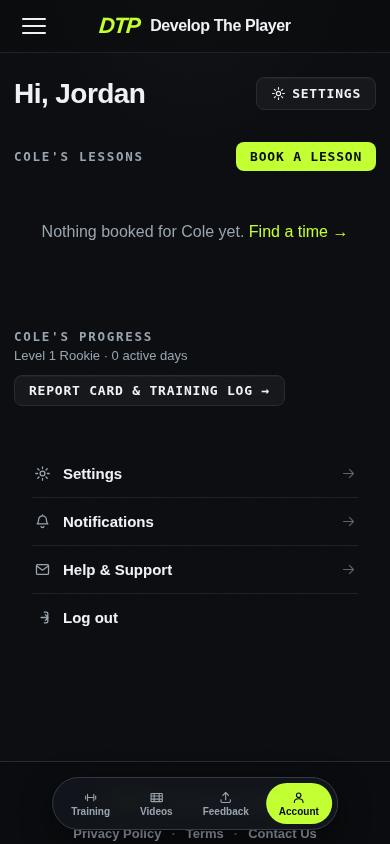
Step 14
Back in your account
Straight back to your dashboard.
Part 5 of 6
Forgot your password
If you can't remember it — or you're not sure you ever had an account.
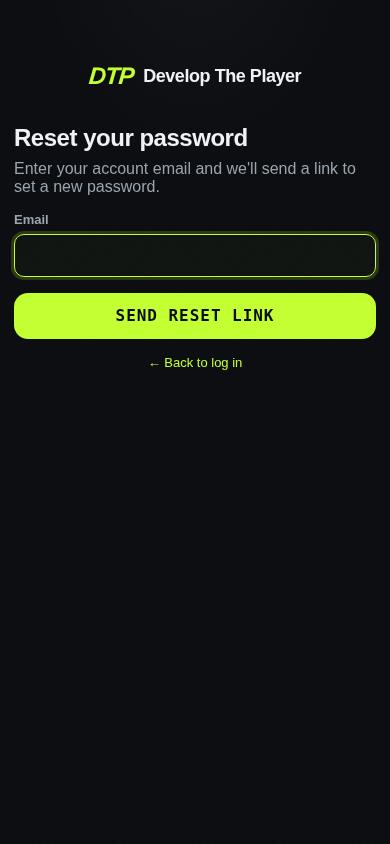
Step 15
Tap “Forgot your password?”
On the login screen, tap “Forgot your password?” and enter the email you signed up with.
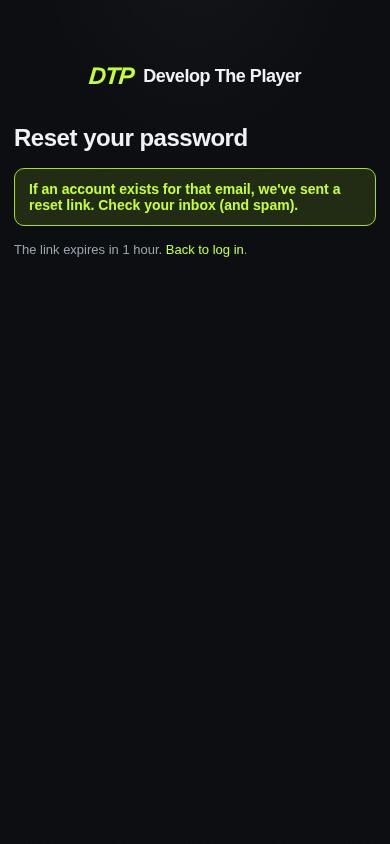
Step 16
Check your email
You'll always see this message, whether or not the email is registered — that's deliberate, so nobody can use the form to discover who has an account.
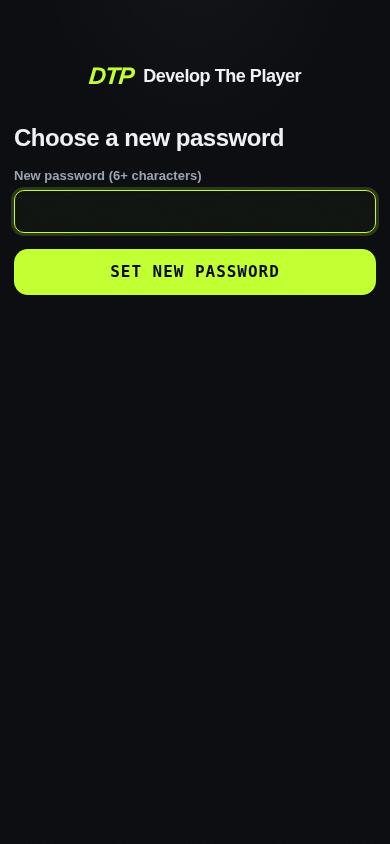
Step 17
Open the emailed link
The email contains a link that's good for one hour, and works only once.
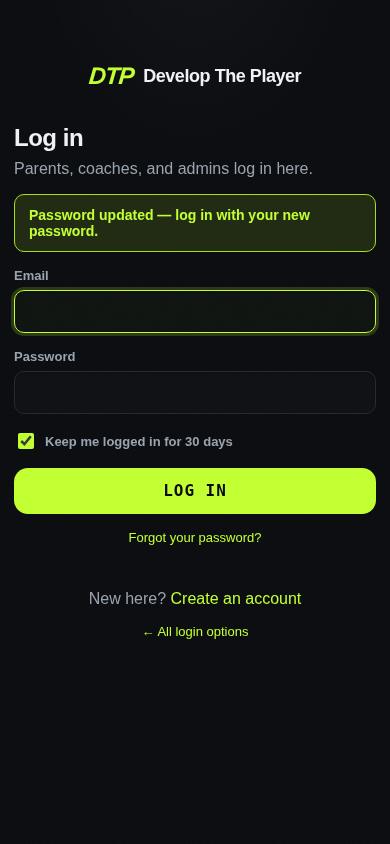
Step 18
Set a new password and log in
Choose a new password and you're sent back to the login screen to use it. Your old password stops working immediately.
Part 6 of 6
Your child's login
Separate from yours, and no email address needed.
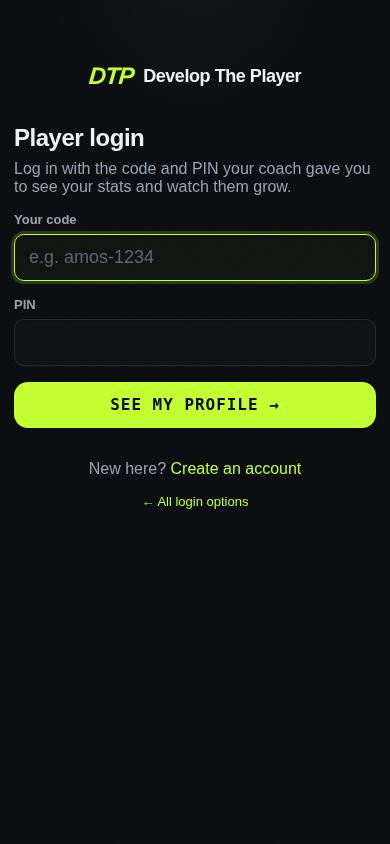
Step 19
Players use a code and a PIN
Your child does NOT need an email address. The coach gives them a login code (like “cole-4821”) and a 4-digit PIN.
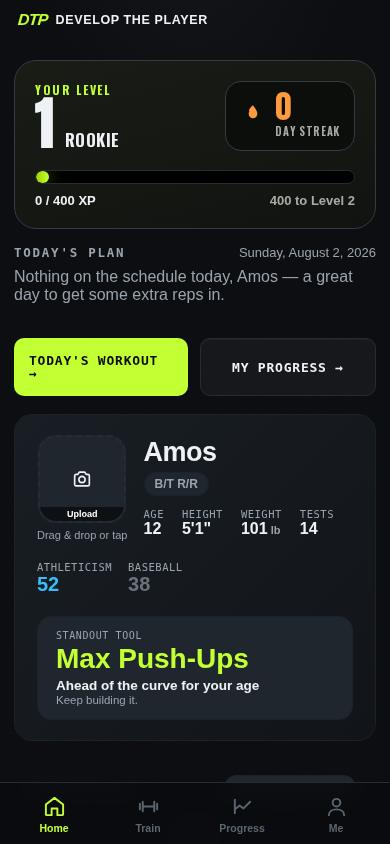
Step 20
Their own view
They land in their own dashboard — their training, videos and progress, separate from your parent account.
If something doesn’t work
- “Too many attempts. Please wait a few minutes.”
- This appears after several failed tries, and it can also show up when a group of parents sign up on the same WiFi at once. Wait a few minutes, or turn WiFi off and use your phone’s cell data.
- The reset email hasn’t arrived
- Check your spam folder. The link is good for one hour and works once — if you open an old one it won’t let you set a password, so request a fresh link.
- Your child’s code and PIN aren’t working
- Capital letters and extra spaces are fine. Check it’s the full code your coach gave you (it looks like firstname-1234), and that you’re on the Player door, not the Parent one.
- Still stuck
- Email support@developtheplayer.com or just ask your coach at the next lesson.